| Function | Facility to set up the presentation formats for Schedule 6 generation. It is essentially to set up the lines and words to be printed, the amounts to be printed against each line, where the amount is derived from and the items that are summarized to arrive at the value. |
| | |
| How To Use | Presentation Setup
|
| | |
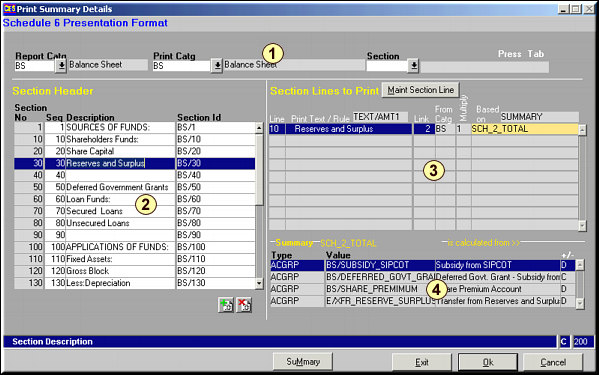
| Area 1 | Enter the criteria to filter by in this area. |
| | Report Catg | Category of report to be printed – currently either of BS or PL |
| | Print Catg | Category of items to be printed – based on the Report Category chosen |
| | Section | Individual section that needs formatting |
| | |
| Area 2 | The Section Headers based on the filter criteria above are displayed. The Section ID is the unique key by which each section is identified. Use buttons  and and  to add / delete sections. Remember to give unique Section ID for new sections being created. to add / delete sections. Remember to give unique Section ID for new sections being created. |
| | |
| Area 3 | Actual lines to be printed, for the selected section, in the report are setup here. Highlight in yellow indicates that the value is based on a summary item. Click Maint Section Line to modify the lines to be printed.Modify Section Line
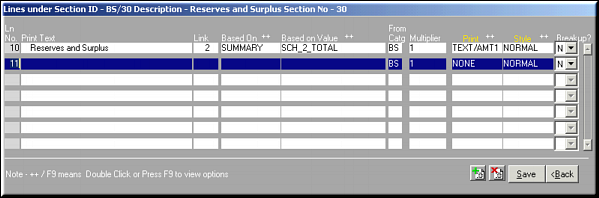
Enter Values for fields and click Save to save and go back to previous screen |
| | Sequence No | Order of Printing. |
| | Print Text | Actual Text to be Printed |
| | Link | Link Text to be printed in next column |
| | From Catg | Category of the source from which "Based on Value" is selected. Example: "Profit carried to Balance Sheet" is shown in the BS category but has its source as PL. |
| | Based On | Calculation rule on which item is based. Value may be based on an individual account, account group, schedule, sub-schedule, section, summary or none of the above. |
| | Based on Value | Value that is mapped on to the current line. Selection is based on the calculation rule selected. Example: in the screen shown above, value is based on a SUMMARY item SCH_2_TOTAL. |
| | Multiplier | Any value by which the amount needs to be multiplied by at time of presentation. |
| | Print | Print Rule to be used for displaying the amount. |
| | Style | Style to be used for printing current line |
| | Breakup? | Y / N – whether breakup needs to be printed before the item is printed. |
| | Notes: Double Click or Press F9 on fields indicated with a "++" to select values from a list. |
| | |
| Area 4 | Breakup for summary items displayed in Area 3 (Highlighted in YELLOW) is given in this area. Click on button Summary to modify the breakup details.
Modify Summary Details
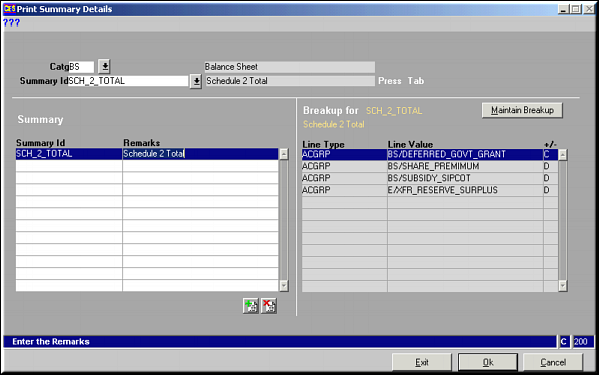
This facility is explained in detail in Presentation Summary (FS06). |
| | |
| | Click OK at end of all operations to save all data and exit. |
| | |
| Pre-requisites | |
| | |
| Notes | |