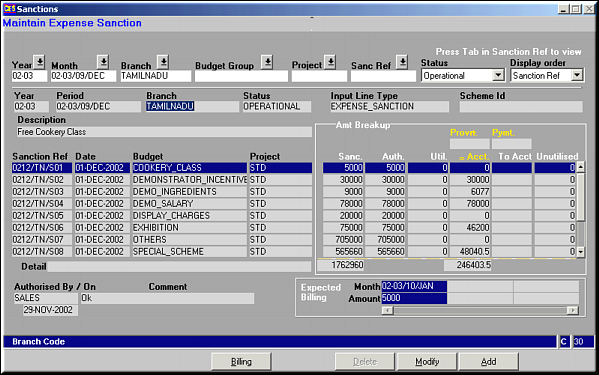
Given is a list of sanctions for the selected branch and month. Also seen is the breakup on amount utilization, authorisation details and the Billing details.
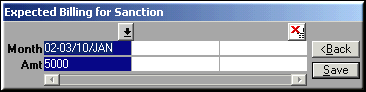
Enter billing details and click Save to save details.
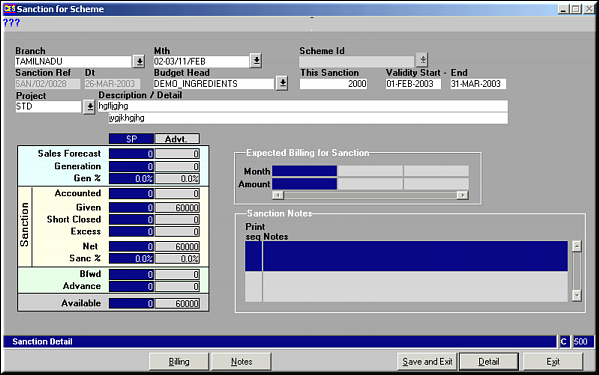
Enter the Sanction details and click Save and Exit to save details and exit. Click Billing to enter expected billing details.Note: The Sales Forecast, Generation and Sanction details are shown for ready reference.Click Notes to enter notes on sanction.
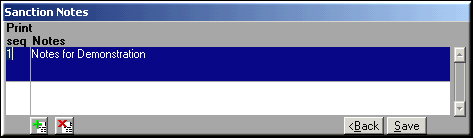
Enter notes on sanction and click Save. Click Details to enter details of the sanction.
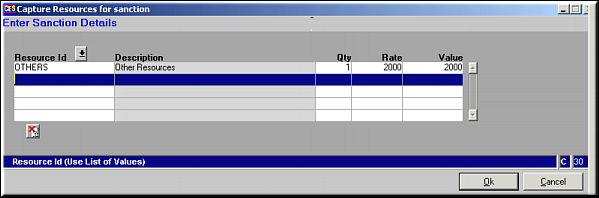
Enter the item code and quantity and click OK to save details.
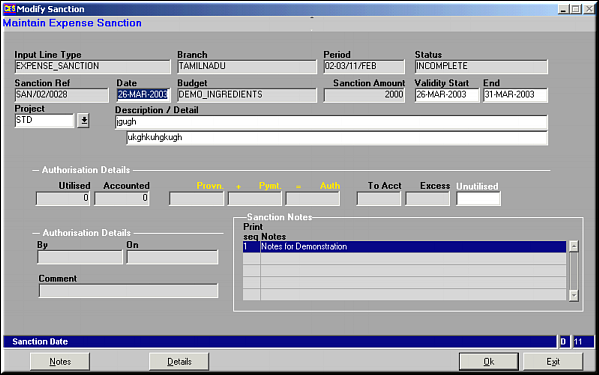
Make necessary changes and click OK to save changes. Use buttons Notes and Details to change notes on sanction and the details respectively.
 and
and  wherever available to add / delete lines of entry.