| Function | Copy a GRN from the Stores Sub-system and value it. Alternately can be used also to modify details in an already valued GRN. |
| | |
| How To Use | |
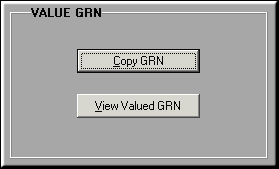
| | On Entering the Facility.
|
| | |
| Copy GRN | Click to Copy a GRN from the Stores System.Enter a GRN No. Press F9 for a list of available GRNs.Details about the GRN are Displayed.
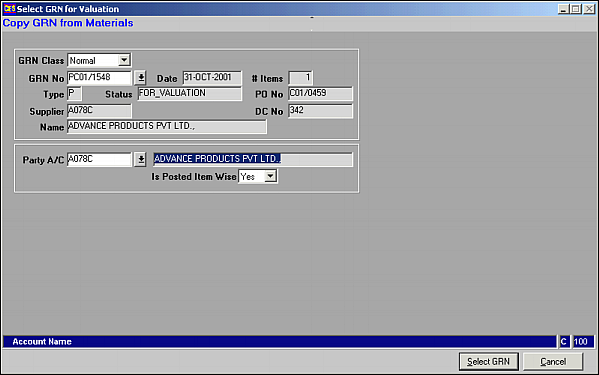
Click Select GRN to select it. Selection of the GRN copies it to Valued GRN. |
| | |
| Select GRN | Valued GRN
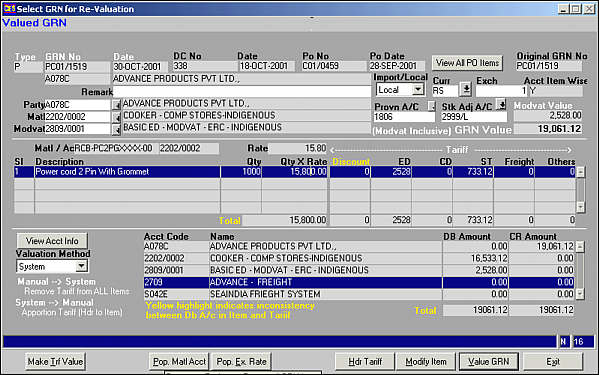
Check if the details shown are correct, else, make necessary changes.Click on Value GRN to value the GRN and Save Changes.Click on View All PO Items to view items in the Purchase Order.Click on View Acct Info to view how the accounting entry is passed. |
| | |
| Make Trf Value | Click to convert the Tariff to a value from a formula. Tariff is usually calculated based on given formula. However, to make fine adjustments arising due to Rounding Off, the formula can be disabled and Tariff changed. |
| | |
| Pop Matl Acct. | Click to Populate Material Account code to Item, Item Tariff and Header Tariff. This is used to clear any anomalies arising out of change in material account Code |
| | |
| Pop Ex Rate | Click to Propagate the Exchange Rate to all GRN Items. Similar to Pop Matl Acct. button for changes in Exchange Rates. |
| | |
| Hdr Tariff | Click to View and Modify Header Tariff.Header Tariff
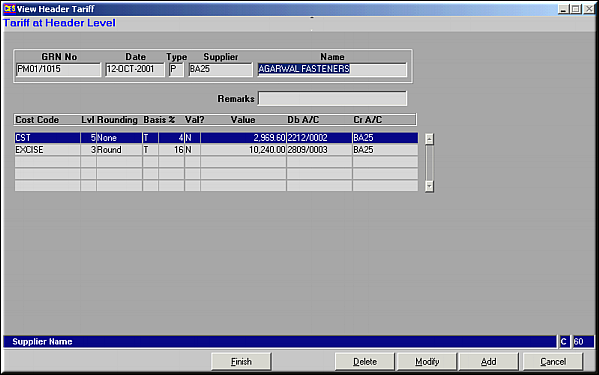
List of all Tariffs at the header level is shown.Tariffs can be added, modified or deleted.Add Header Tariff
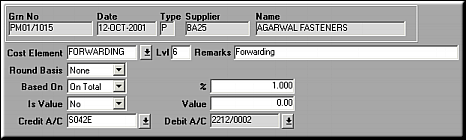
Enter necessary fields and click OK to save the Tariff.Modify and Delete show details on a similar screen. Make necessary changes and Click OK to save Changes. |
| | |
| Modify Item | Click to modify item level details.Modify Item
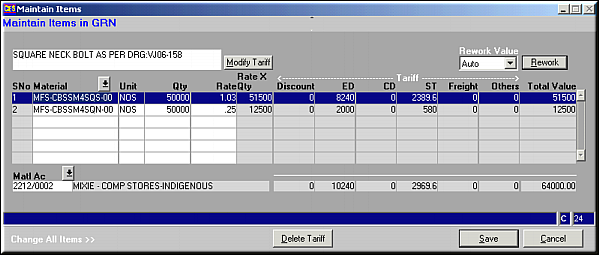
Make necessary changes.Click on Delete Tariff to delete a tariff line.Click on Modify Tariff to make changes to item level tariffs.Modify Item Tariffs.
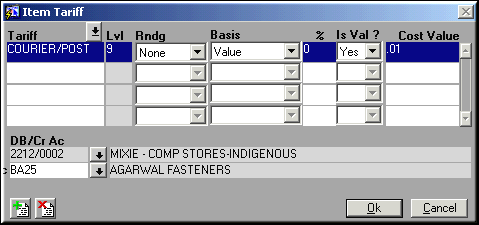
Use  and and  to add / delete item tariffs. Click OK to save changes. Control is back in previous screen.Click on Rework to review values after changes have been made. The Rework can be Automatic or Manual.Click on Save to save changes and leave the screen. to add / delete item tariffs. Click OK to save changes. Control is back in previous screen.Click on Rework to review values after changes have been made. The Rework can be Automatic or Manual.Click on Save to save changes and leave the screen. |
| | |
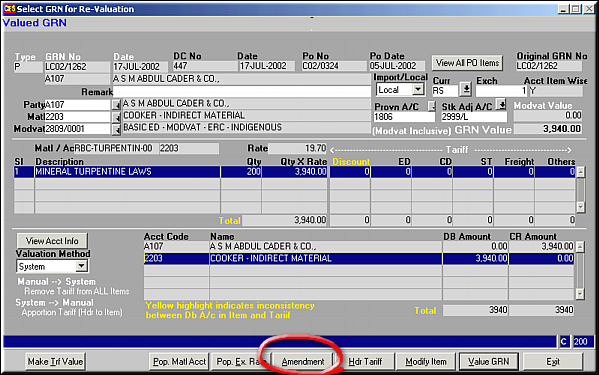
| View Valued GRN | Screen and functionality are same as in Copy GRN and valuation except for the additional button Amendment.
|
| | |
| Amendment | Click to view any amendments made to Purchase Order. These amendments need to be given effect in the GRN valuation. Amendments may be in Rate, Quantity or Items Purchased. |
| | |
| Valuation Method | Applicable in GRNs with multiple items.The header tariffs, when displayed, are apportioned against each of the items. Changing method from System to Manual apportions the Header tariff across items. Changing method from Manual to System removes all Tariffs against items and prompts user to enter new header tariff to be apportioned |
| | |
| Value GRN | Click to value a GRN and save Changes made. |
| | |
| Pre-requisites | |
| | |
| Notes | Inconsistencies are highlighted in Yellow.GRN value shown is inclusive of MODVAT. |