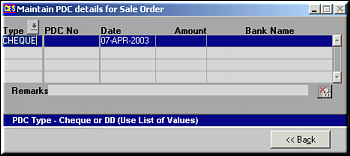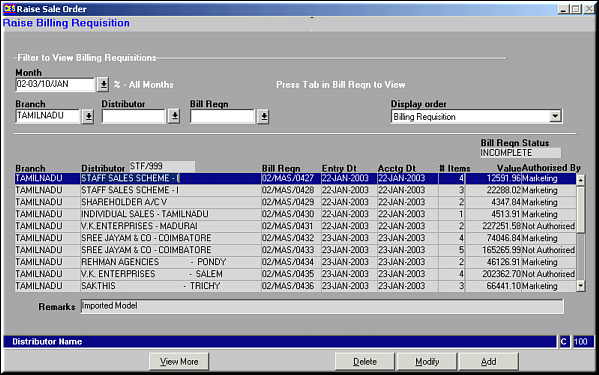
Displayed is a list of all Billing Requisitions subject to the filter criteria specified. Click View More to view all information about the BR – Address, Terms, Items (including Item Tariffs and Budget Contributions) and PDC details.

Enter autonum Doc Type for BR and click "Next" to continue.Add BR
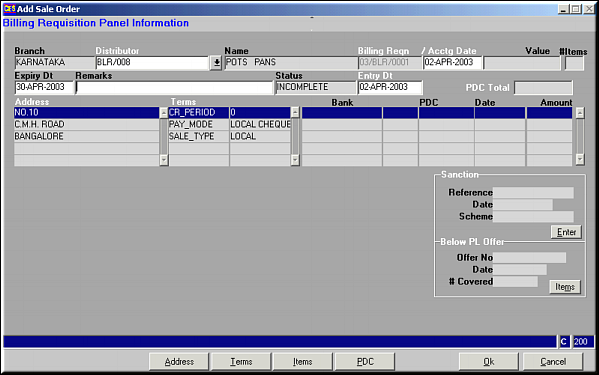
Enter Distributor Code, Date and remarks. Click OK to Save BR.Click Address to view/modify address.Modify Address
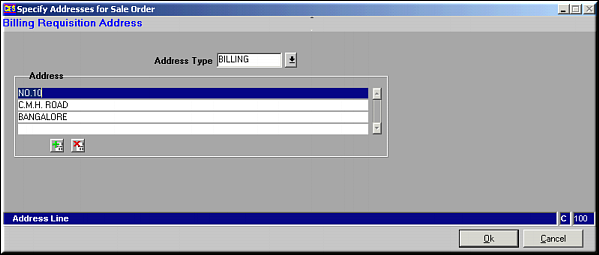
Use buttons
 and
and  to add / delete address lines. Click OK to save changes.Modify Terms
{bmc ./so41-terms.bmp}Make changes if any and click OK to save.Add Items
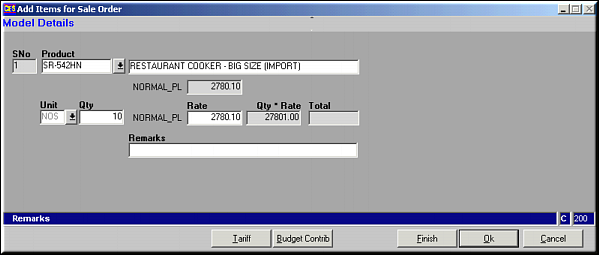
Enter the Product Code, Quantity and remarks and click OK to save. Tariff and Budget Contributions for the product can be set using the respective Buttons.Note: Only Products that have been registered for the distributor and area will be Displayed in the List of Products to select from.
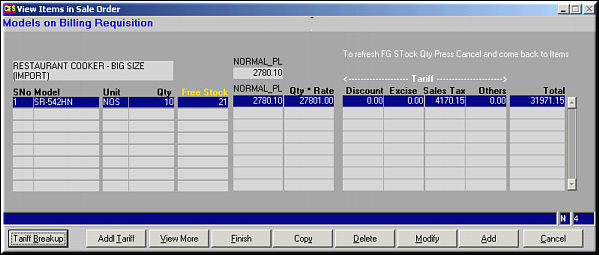
Click Modify to modify the item details including Tariff and Budget Contributions.Click Delete to delete the item from the billing requisition.Click Copy to copy a product from sanction for Below PL Sale.Click View More to view all details about the item, its tariff and Contribution.Click Addl Tariff to add additional tariff to the item.
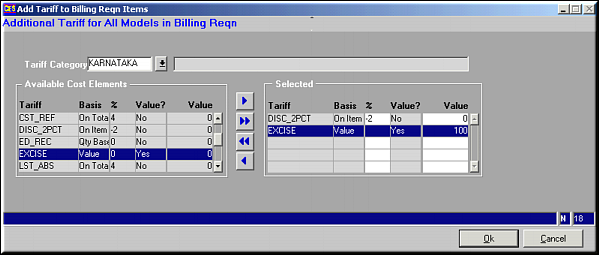
Use buttons
 ,
,  ,
,  and to select tariffs to be applied. Click OK to save additional tariff details.Click Tariff Breakup to view breakup on tariff. PDC Details